How to Record Steady Family Videos Without Buying a Gimbal
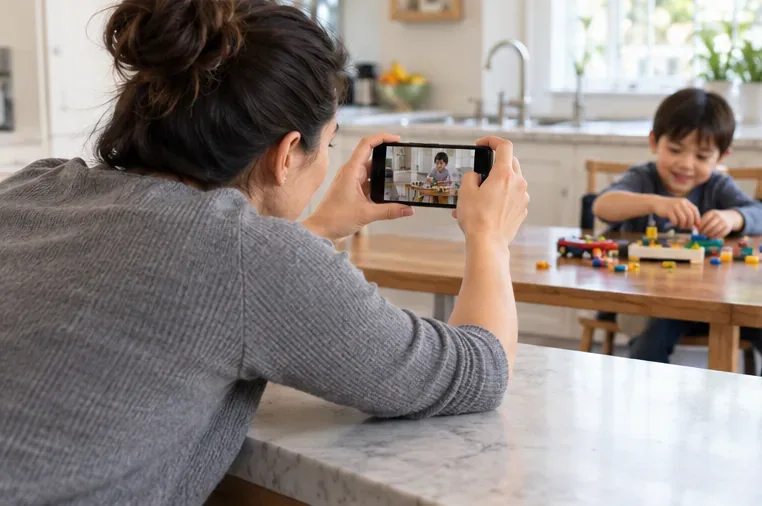
Record smoother family videos without a gimbal using a steady grip, body bracing, stable surfaces, walking technique, and built-in phone stabilization.
The easiest way to organize years of family video clips is usually to choose one main archive, group files by year, and add event folders only when they help. Then use a photo or video library for quick browsing and sharing if you want one. This keeps the archive understandable without asking everyone to tag every clip or decide immediately which memories to delete.
The best setup depends on what matters most: quick phone access, portability, easy sharing, or control over the original files. A folder archive, a photo library, and a cloud-first collection each solve a different part of the problem. For many families, a modest hybrid works well: folders hold the originals, a library or album view makes favorite moments easier to find, and separate backup copies protect against loss.
| Method | Works well when | Main trade-off |
|---|---|---|
| Year and event folders | You want files you can move between computers, drives, and services. | Someone has to choose folder names and occasionally tidy new clips. |
| Photo or video library with albums | You mostly browse on a phone, search by dates, and share selected moments. | Album organization and access can depend on the app, account, and sync settings. |
| Cloud-first library | You want new phone clips to appear on other devices with little manual work. | Storage limits, upload time, privacy settings, and deletion behavior matter. |
| Hybrid archive and library | You want originals organized in a portable place plus an easy viewing layer. | It takes care to avoid accidental duplicate copies and to verify backups. |
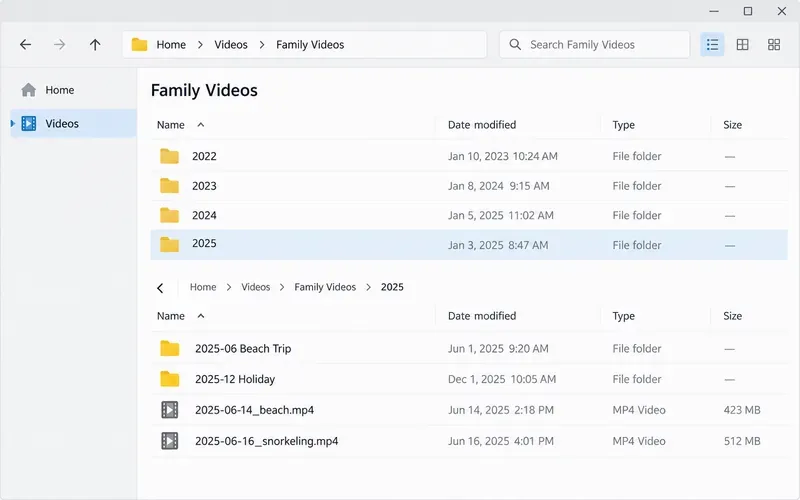
Folders are a good default if your clips are spread across phones, cameras, laptops, or external drives, or if you do not want one app to define the archive. Start with one top-level folder called Family Videos, then make a folder for each year. Create an event folder only for a meaningful batch, such as a vacation, school performance, or reunion.
A simple structure could look like this:
Family Videos/
  2023/
  2024/
    2024-07 Beach Trip/
  2025/
    2025-12 Holiday/
Put the full-resolution originals in the appropriate year or event folder. A date-first event name, such as 2024-07 Beach Trip, sorts in calendar order on most systems and is easier to scan than a folder called “Trip” or “Videos.” If you know the exact day, use it; if you only know the month or year, do not guess.
You do not need to rename thousands of files before the archive becomes useful. Keep camera filenames for ordinary clips, especially if they include dates or sequence numbers. Rename only the clips you know you will search for often, using a short pattern such as 2024-07-18_Beach-sunset.mp4. Use the same pattern over time, and do not alter or re-encode the only original just to make its name prettier.
Microsoft’s OneDrive guidance illustrates a practical distinction: files can be sorted and moved in the file view, while its Photo view gathers images from different folder locations and albums are aggregated views rather than folders that move as a unit. The exact behavior differs by service, but it is a reason to keep a clear folder home for originals if portability matters. See Microsoft’s instructions for sorting, renaming, and moving OneDrive files.
A library app is convenient when the main task is finding a clip by when it was recorded, viewing it on a phone, or making a small album to share. For example, Google Photos says its search can find backed-up items by people, places, and things when the relevant settings are enabled. Apple Photos lets users create albums and folders for albums; with iCloud Photos, albums are available on devices signed in to the same Apple Account. Those conveniences can save manual naming work if your family already uses the ecosystem.
There are limits. A search or thumbnail in an app does not always mean the file is safely backed up: Google notes that its app can display media stored on the device even when it is not backed up to the signed-in account. Check the backup status of important clips, not just whether they appear in the library. Also review account access, sharing controls, storage use, and the service’s current backup-quality choices before moving a large archive.
Albums may behave differently from folders. Apple’s support guide says deleting an album leaves the photos and videos in the main library. OneDrive describes its albums as aggregated views, not moveable folders. These models can be useful for organizing one clip into several views without making copies, but the album structure may not transfer as ordinary files if you change services. If family members need access, share an album or link with the least access needed, and periodically confirm who can still open it.
Organization does not protect a video from a failed drive, mistaken deletion, or account problem. For clips that would be hard to replace, keep multiple copies in separate places. The Cybersecurity and Infrastructure Security Agency describes the 3-2-1 approach: three copies of important files, on two kinds of media, with one copy off-site. For a family, that could mean the working archive on a computer or external drive, a second copy on a separate drive, and an off-site copy in a cloud account. The point is that a second folder on the same disk is not an independent backup.
Cloud services can be part of a backup plan, but understand whether a feature is syncing, backup, or both. Sync keeps locations aligned, which is convenient; depending on the service, deletion or unwanted changes may also propagate. Check how the service handles deleted items and recovery, and do not erase a phone or old drive until you have verified the copy on another device. For especially valuable clips, test opening a few files from the backup instead of assuming an upload completed.
Duplicates are easier to handle after the archive is copied and stable. Similar-looking clips may differ in length, resolution, edits, or sound. Compare file size, duration, and playback before deleting anything, and keep the version that is complete and clear. If the collection is very large, leave questionable duplicates alone and focus first on making sure each year has at least one confirmed copy elsewhere.
If your videos are already concentrated in one phone library, start by checking backup status and creating a few year or event albums. If clips are scattered across devices, folders are usually the clearer first move. In either case, avoid a grand cleanup project: a consistent home, sensible year labels, and verified copies make a large collection easier to use while leaving time to enjoy the videos themselves.
Record smoother family videos without a gimbal using a steady grip, body bracing, stable surfaces, walking technique, and built-in phone stabilization.
Learn how deduplicating backups, snapshots, hashes, and restore tests can protect large videos while avoiding redundant copies.
Review faces, addresses, school clues, screens, audio, and location metadata before posting a family video. Compare blur, crop, mute, private sharing, and not posting.
Phone video brightness shifts usually come from auto-exposure, changing lenses, or flickering lights. Diagnose the cause and steady your next recording.
Learn how to reduce flicker and banding from household lights by matching frame rate and shutter speed, using camera controls, testing dimmers, and changing light sources.
Choose music for a home video by matching its license to your platforms, checking attribution and reuse terms, and saving proof before you post.
Find a practical camera height for craft demonstrations, compare overhead and angled views, and check framing, focus, and lighting so viewers can follow each step.
Learn why uploaded videos can look softer, how transcoding and playback quality affect detail, and what to check in processing, export settings, and your source file.
Capture more understandable speech when children move with closer microphone placement, a quieter setup, simple monitoring, and a clear playback check.
Learn how to film short recipe videos with hands-only framing, a clean background, careful audio, and a final privacy check before posting.