How to Record Steady Family Videos Without Buying a Gimbal
Record smoother family videos without a gimbal using a steady grip, body bracing, stable surfaces, walking technique, and built-in phone stabilization.
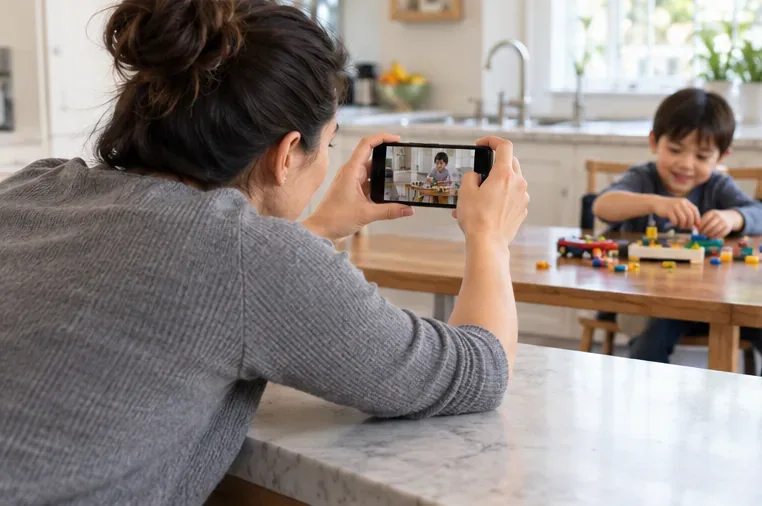
The quickest way to make family videos look steadier without a gimbal is to reduce movement before your phone has to correct it: hold the phone with two hands, keep your elbows close to your body, move your whole torso instead of flicking your wrists, and use a table, wall, bench, bag, or other stable surface whenever the shot allows it. Built-in stabilization can then clean up the smaller motion that remains.
This approach is especially useful for birthdays, playtime, school events, vacations, and everyday clips where you want natural-looking footage without carrying extra gear. It will not turn a sprinting handheld shot into a floating cinematic move, but for ordinary family moments it can make a large, visible difference.
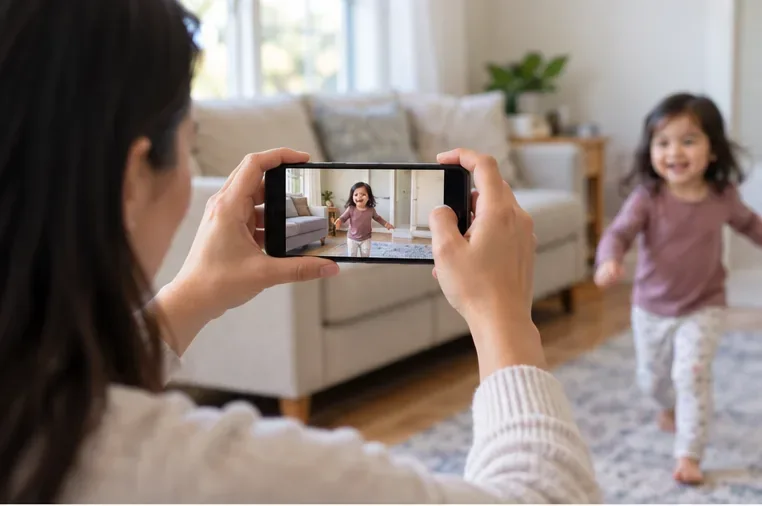
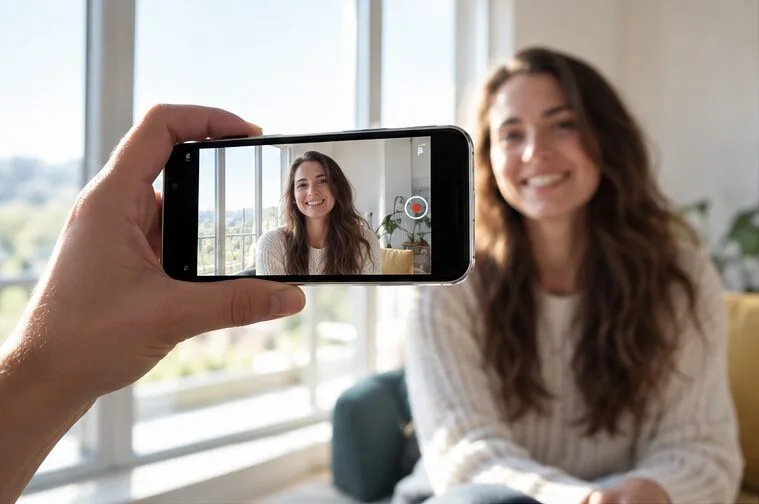
Small wrist movements are one of the main reasons handheld phone video looks nervous. A simple fix is to use both hands and let your upper body absorb some of the motion. Hold the phone at about chest or eye level, keep your elbows lightly tucked toward your ribs, and stand with your feet comfortably apart.
Do not lock your elbows rigidly. A stiff posture often transfers every tiny body movement directly into the phone. Instead, think of your arms as a soft suspension system. If a child suddenly changes direction, turn from your waist and hips instead of steering the phone with quick wrist movements.
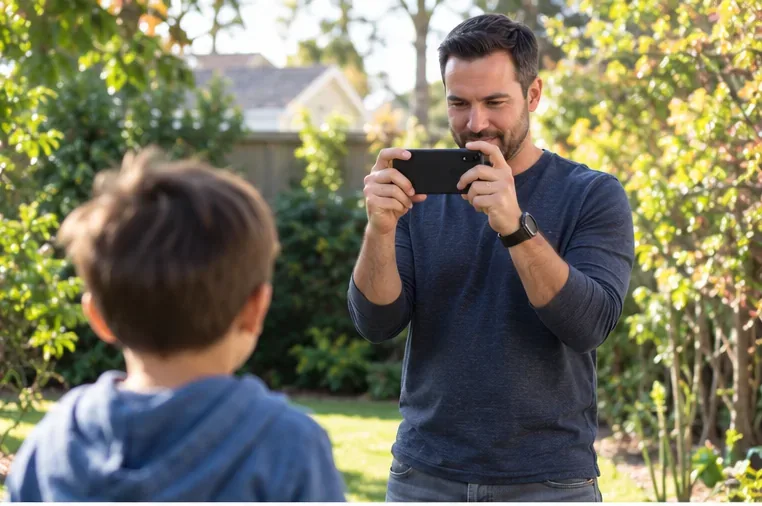
Use this technique when you are standing mostly in one place: opening presents, blowing out birthday candles, a child speaking on stage, or a family member walking toward you. If you can keep your feet planted, you have already removed a major source of shake.
A wall, doorframe, kitchen counter, picnic table, fence post, or the back of a chair can become a free stabilizer. Rest one elbow or part of your forearm against the surface while you record. If you are seated, put your elbows on the table or your knees.
This is often the best option in lower light because you are stabilizing the phone mechanically rather than asking a strong electronic mode to do all the work. The exact low-light behavior depends on the device, but Samsung explicitly notes that its Super Steady mode can reduce shutter speed and affect video quality in dim conditions. See Samsung’s official Super Steady support guidance.
Walking introduces vertical bounce with every step. You cannot remove it completely without specialized equipment, but you can reduce it. Bend your knees slightly, take shorter steps, and let your feet roll smoothly from heel to toe. Keep your upper body quiet and avoid sudden changes of speed.
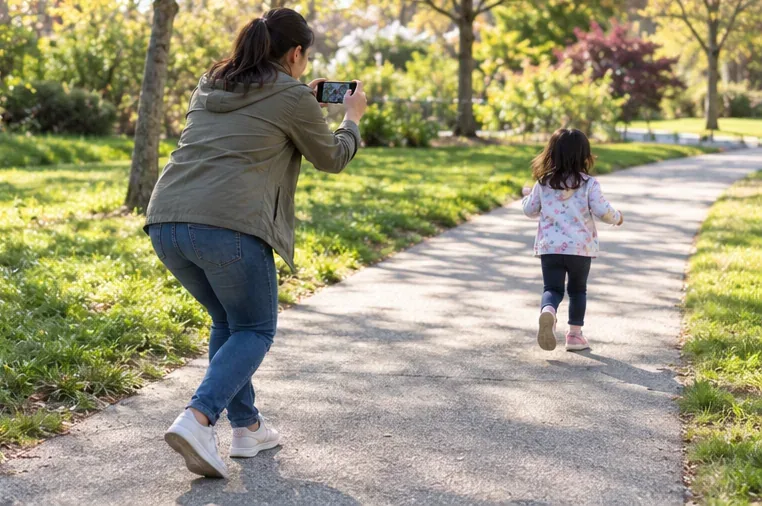
For example, if your child is riding a scooter, do not immediately jog beside them. First try standing farther back and letting them cross the frame. If you need to follow, walk slowly and keep a little distance. A wider composition gives you more room for the subject to move without forcing frantic pans.
A pan is a horizontal camera move from one side to another. The smoothest no-gimbal pan comes from setting your feet first, holding the phone steady, and rotating your shoulders and torso as one unit. Start moving before the key action reaches the center of the frame, keep a constant speed, and continue for a moment after the action passes.
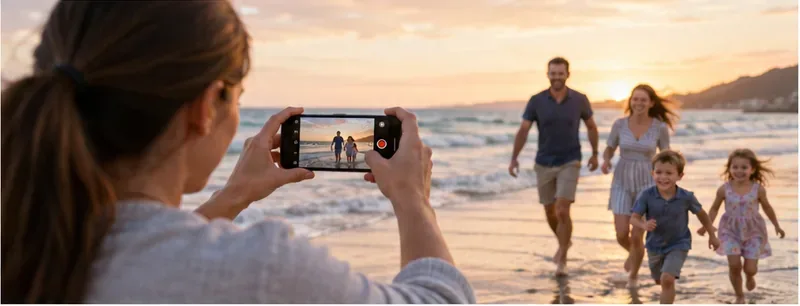
Try to avoid combining several movements at once. Walking, panning, tilting, and digitally zooming at the same time creates a shot that is hard to stabilize and hard to watch. If you need a closer view, stop moving first, reframe, and then continue recording.
Modern phones may offer several stabilization options, but names and availability vary by model. Apple states that Action mode on supported iPhones provides improved stabilization while recording video, and that Enhanced Stabilization on supported models zooms in slightly to improve stability. See Apple’s official iPhone video guide and video recording settings guide.
Google’s Pixel Camera documentation distinguishes Standard stabilization for light movement, Locked stabilization for still shots on supported models, and Active stabilization for heavier movement on supported models. Check Google’s official Pixel video recording guide for the options available on a particular Pixel.
The practical rule is simple: use normal video stabilization for ordinary handheld family clips, a locked or static-oriented mode when the phone is nearly stationary, and an action-oriented mode only when you truly need extra correction. Stronger stabilization may crop the image or change low-light behavior, so test it in the actual lighting before an important event.
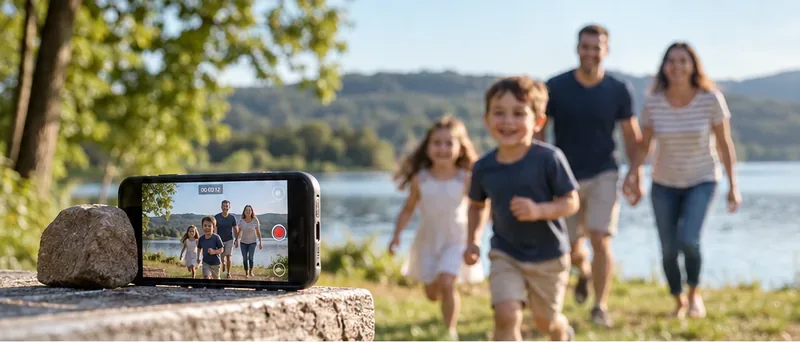
If the action is predictable, the steadiest handheld technique is no handheld technique. Put the phone on a stable surface and frame the scene before it starts. A shelf, table, backpack, folded jacket, or stack of books can work. Make sure the phone cannot slide or fall, especially around children.
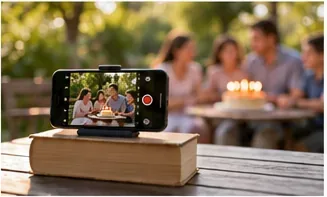
This is ideal for a birthday cake, family dinner, opening gifts, a child practicing an instrument, or a group activity where everyone should be in the frame. Start recording a little early, step away, and let the moment unfold instead of repeatedly touching the phone.
Stability is partly a framing decision. A tight shot magnifies every movement, while a moderately wider shot is more forgiving. That does not mean you should always use an ultra-wide lens; it means you should avoid getting so close that you constantly have to chase the subject with the camera.
For a child running toward you, for instance, place yourself where they have room to enter the frame and keep the phone still. For a school performance, resist the urge to zoom in and out repeatedly. Choose a useful composition, hold it, and let the action happen inside the frame.
A family video does not need to be one continuous recording. In many situations, several short steady clips are easier to watch than a long clip that follows every movement. Record a wide shot of the scene, then a medium shot, then one or two close details. Stop between shots so you can change position without recording the messy movement.
At a birthday party, that could mean one fixed shot of the room, one steady clip of the cake arriving, one closer shot of the candles, and one reaction shot. This approach reduces the amount of camera movement you need to perform while recording and gives you cleaner material if you later trim the video.
| Situation | Best first choice | Tradeoff |
|---|---|---|
| Child speaking, singing, or opening gifts | Brace on a table or wall | Less freedom to move |
| Walking behind a child | Two-hand grip, bent knees, short steps | Still not as smooth as a motorized gimbal |
| Fast outdoor play | Good hand technique plus an action-oriented stabilization mode if supported | May crop the frame and can have low-light limits |
| Birthday cake or family group | Stable surface or small phone support | Framing must be planned in advance |
| Low-light indoor scene | Mechanical support first | You may need to stay mostly stationary |
A gimbal still has an advantage when you want long moving shots, fast tracking, smooth orbiting moves, or professional-looking motion while walking quickly. The methods above are designed for ordinary family recording, not for pretending a phone has become a stabilized cinema rig.
They also cannot rescue poor framing, very dark lighting, or a lens covered with fingerprints. Before an important moment, wipe the lens, check the available light, confirm that the phone has enough storage and battery, and record a five-second test clip. Watch that clip once. If the background drifts or the frame bounces, change your stance or find a support before the real moment begins.
For most family videos, those habits are enough to move the footage from distracting and shaky to calm and watchable—without buying a gimbal.
Record smoother family videos without a gimbal using a steady grip, body bracing, stable surfaces, walking technique, and built-in phone stabilization.
Learn how deduplicating backups, snapshots, hashes, and restore tests can protect large videos while avoiding redundant copies.
Review faces, addresses, school clues, screens, audio, and location metadata before posting a family video. Compare blur, crop, mute, private sharing, and not posting.
Phone video brightness shifts usually come from auto-exposure, changing lenses, or flickering lights. Diagnose the cause and steady your next recording.
Learn how to reduce flicker and banding from household lights by matching frame rate and shutter speed, using camera controls, testing dimmers, and changing light sources.
Choose music for a home video by matching its license to your platforms, checking attribution and reuse terms, and saving proof before you post.
Find a practical camera height for craft demonstrations, compare overhead and angled views, and check framing, focus, and lighting so viewers can follow each step.
Learn why uploaded videos can look softer, how transcoding and playback quality affect detail, and what to check in processing, export settings, and your source file.
Capture more understandable speech when children move with closer microphone placement, a quieter setup, simple monitoring, and a clear playback check.
Learn how to film short recipe videos with hands-only framing, a clean background, careful audio, and a final privacy check before posting.