How to Record Steady Family Videos Without Buying a Gimbal

Record smoother family videos without a gimbal using a steady grip, body bracing, stable surfaces, walking technique, and built-in phone stabilization.
You cannot back up a video without keeping at least one additional recoverable copy somewhere. The way to avoid needless duplicates is to stop making a fresh folder copy for every backup run and use a backup system that stores snapshots while deduplicating identical content inside one repository. Keep one organized source library, back it up to one deduplicating repository, and verify that you can restore a clip before removing any older copy. If you need protection from theft, drive failure, or ransomware, a second isolated backup is intentional redundancy; it will use additional storage.
The Restic examples below follow the 0.19.1 documentation checked October 1, 2026. The paths are Linux-style examples; substitute the paths and setup instructions for your computer and repository. A graphical backup tool can follow the same principles if it explicitly documents snapshotting, deduplication, retention, and restore testing.
A video file can appear twice because you copied it into multiple folders, exported a second copy, or downloaded it again. Two files with different names may still contain exactly the same bytes; two files with the same name may contain different edits. A file name alone cannot identify a duplicate.
There is also an important difference between a duplicate file and a backup snapshot. A snapshot is a record of the files as they existed at a point in time. A backup repository can keep several snapshots without storing every unchanged video again. This helps preserve earlier versions while reducing repeated storage of identical data. A plain folder copy usually makes another physical file; a sync service may mirror changes or deletions; a deduplicating backup program keeps recovery history while reusing content already in its repository.
| Approach | What it does | When it fits |
|---|---|---|
| Manual folder copy | Makes a separate copy of each file; repeated copies consume more space. | Simple one-off transfer or a deliberately independent copy. |
| Cloud sync | Keeps selected folders aligned across devices; deletions or unwanted edits may sync too. | Convenient access and collaboration, paired with a separate backup if recovery history matters. |
| Deduplicating backup repository | Stores snapshots and reuses identical data chunks within that repository. | Repeated large backups where you want version history without re-storing unchanged video data each run. |
Start by choosing a single authoritative folder for camera originals and finished exports. Organize it by project, shoot date, or another scheme you can keep using. If you retain proxies, renders, and final exports, label them clearly so you can tell which are replaceable and which are master files. Avoid repeatedly dragging the entire library into folders named “Backup,” “Backup 2,” and “Final backup.” That creates additional file copies without giving you a clear restore history.
A deduplicating backup program scans the source and stores content in a repository. In Restic, each backup creates a snapshot, while content already stored in the same repository can be reused. That can save space when the same source is backed up repeatedly, including when the file name or path differs. The program may need to read a renamed large file again to determine what it contains, so deduplication can save repository space without making every scan instantaneous.
For example, an editor can use one repository on a dedicated external drive or a supported remote storage location. Initialize that repository once, then keep directing later backups to that same repository. Starting a separate repository for every project usually gives up opportunities to reuse data across those repositories. Restic repositories are encrypted; protect the repository password and keep a recoverable copy of it separate from the drive. If you lose the password, you may not be able to read the backup.
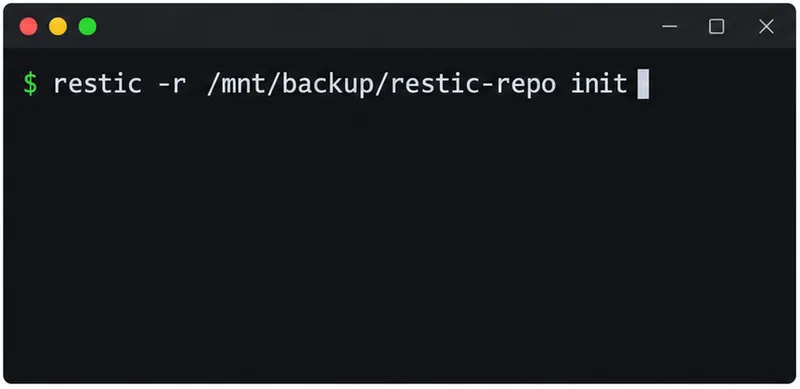
Connect or mount the destination drive first, then initialize the repository in a dedicated folder on it. Restic will ask for a repository password if you have not configured one through its supported password methods. Choose a strong password and store it safely in a password manager or other separate recovery location. Do not put the password directly in a command that could be saved in shell history.
restic -r /mnt/backup/restic-repo initDo not create a new repository each time you run the backup. Later commands must point to this same repository if you want it to reuse previously stored data.
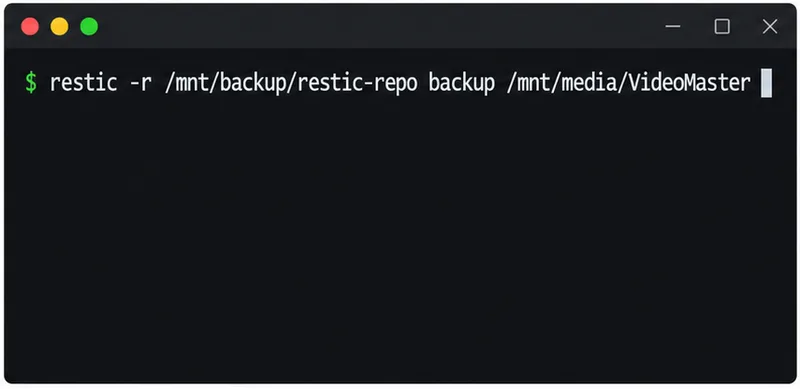
Replace the sample source path with the folder that contains the footage you want to protect. Run the backup and review the completion summary for errors. For a first backup of a large video library, the program must read and transfer its data; the initial run can take substantial time. Do not disconnect the drive or interrupt the upload before the program confirms completion.
restic -r /mnt/backup/restic-repo backup /mnt/media/VideoMasterFor routine use, keep the source path consistent and point to the same repository. A stable path helps some backup tools identify the previous snapshot efficiently. If you work on Windows or macOS, use the correct path format and follow the current Restic installation and repository instructions for your shell.
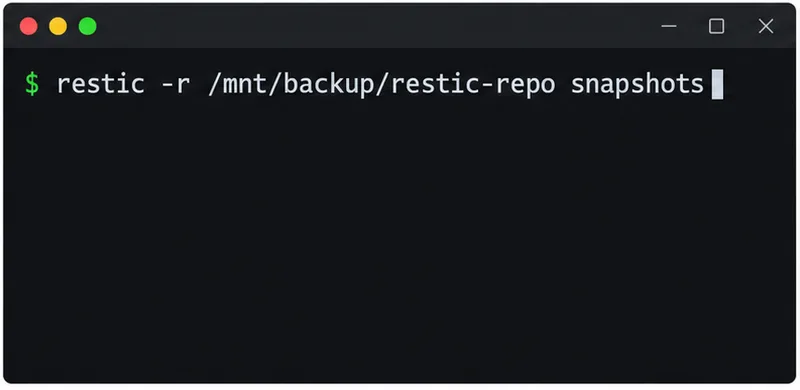
When you add or edit footage, run the same backup command again. Restic makes another snapshot so you can recover an earlier state, but unchanged content already stored in the same repository is not written as another full copy. The documentation notes that a repeated backup of unchanged data can add no new file data, although snapshot metadata may still be recorded.
restic -r /mnt/backup/restic-repo backup /mnt/media/VideoMaster
restic -r /mnt/backup/restic-repo snapshots
This is different from exporting the same source folder to another dated directory. It also differs from a video re-export: transcoding, trimming, color grading, or changing the container can alter many bytes, so the new version may require substantial additional storage. If you need the previous edit, retaining that version is useful; if it is only a temporary render, decide on a retention rule rather than deleting it blindly.
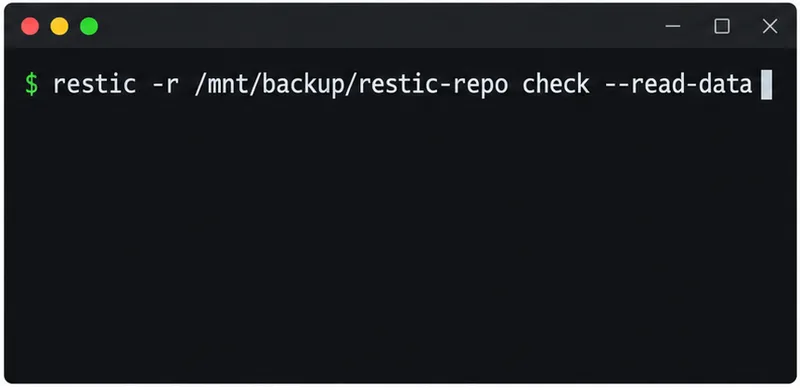
Run the repository check periodically and after moving or changing backup storage. The full data-read option takes longer because it reads stored data, which is useful for large archives but may be better scheduled when the drive or network is available.
restic -r /mnt/backup/restic-repo check --read-data
restic -r /mnt/backup/restic-repo restore latest --target /mnt/restore-test
Restore to a separate test folder, not over your working library. Open a restored clip and confirm that its duration, audio, and picture are as expected. A successful backup command is encouraging, but a restore test shows whether you can actually use the backup and whether you know where the files will appear.
A cryptographic hash such as SHA-256 is a fingerprint of file contents. If two files have matching strong hashes, they are a practical way to identify byte-for-byte duplicate files even when the names differ. On Windows, PowerShell’s Get-FileHash calculates SHA-256 by default; other systems have equivalent tools. Hashing a multi-gigabyte video requires reading the file, so scanning a large archive can take time.
Use hashes to audit an existing collection or compare a source file with a copied file. Do not delete one based only on a matching name, date, or thumbnail. Review the path, size, project context, and any version notes first. A hash comparison also does not prove that the entire backup system is recoverable; it checks file content, while a restore test checks the recovery process.
Set a retention policy that matches your editing needs: for example, keep recent snapshots more frequently and older snapshots less frequently, if your backup program supports that policy. Understand how its cleanup command works before pruning snapshots; removing a snapshot may make an older edit unavailable even when it saves storage. Keep at least one backup destination separate from the computer. CISA recommends offline, encrypted backups and regular testing; an external drive that stays connected all the time can be exposed to the same malware or accidental deletion as the source computer.
Deduplication normally applies within a repository. A second independent repository or a copied backup stored elsewhere may use more space, and that extra copy is deliberate protection against a single drive, theft, or account failure. Do not trade away the only recoverable copy just to make storage usage look smaller. Before removing any old folder copy, confirm that the new repository contains the expected snapshot, complete the check, test a restore, and confirm that the master files still open.
If those checks pass, you can keep recovery history without repeatedly storing unchanged video data in the same repository. Expect new or heavily edited footage to use more space, and keep independent copies when the value of the footage warrants that protection.
Restic command examples checked against the 0.19.1 documentation on October 1, 2026. Paths are illustrative, and the exact setup, storage costs, retention rules, and recovery options depend on the tool and destination you choose.
Record smoother family videos without a gimbal using a steady grip, body bracing, stable surfaces, walking technique, and built-in phone stabilization.
Learn how deduplicating backups, snapshots, hashes, and restore tests can protect large videos while avoiding redundant copies.
Review faces, addresses, school clues, screens, audio, and location metadata before posting a family video. Compare blur, crop, mute, private sharing, and not posting.
Phone video brightness shifts usually come from auto-exposure, changing lenses, or flickering lights. Diagnose the cause and steady your next recording.
Learn how to reduce flicker and banding from household lights by matching frame rate and shutter speed, using camera controls, testing dimmers, and changing light sources.
Choose music for a home video by matching its license to your platforms, checking attribution and reuse terms, and saving proof before you post.
Find a practical camera height for craft demonstrations, compare overhead and angled views, and check framing, focus, and lighting so viewers can follow each step.
Learn why uploaded videos can look softer, how transcoding and playback quality affect detail, and what to check in processing, export settings, and your source file.
Capture more understandable speech when children move with closer microphone placement, a quieter setup, simple monitoring, and a clear playback check.
Learn how to film short recipe videos with hands-only framing, a clean background, careful audio, and a final privacy check before posting.