How to Record Steady Family Videos Without Buying a Gimbal
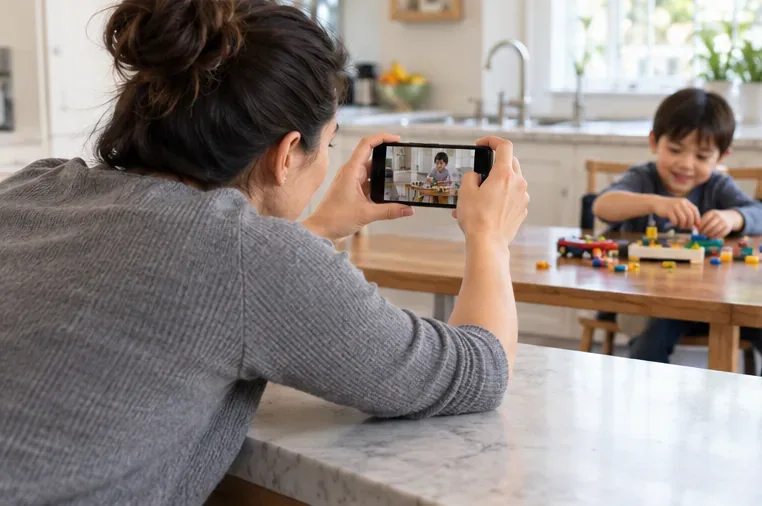
Record smoother family videos without a gimbal using a steady grip, body bracing, stable surfaces, walking technique, and built-in phone stabilization.
A family video can reveal more than the moment you meant to share. A child’s school logo, a house number in the background, an address on a package, or location data attached to the file can identify people or places. Before posting, decide who should be able to watch it and what information they need to see. Then choose among blurring, cropping, muting, sharing with a limited audience, or leaving the video offline.
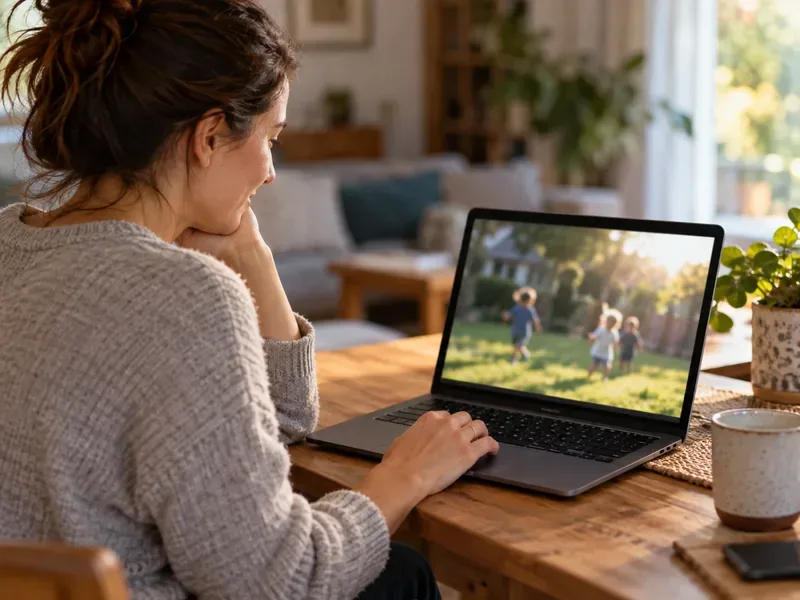
Ask two questions: Who will receive this video, and what does the video need to show for them? A short clip sent directly to known relatives has a different exposure than a public social post, but “private” settings cannot prevent every recipient from saving, recording, or forwarding a copy. The Australian eSafety Commissioner advises families to consider audience, identifying details, location, and a child’s views before sharing. Its guidance on children’s privacy also suggests using direct, trusted sharing methods when they suit the family.
For a public post, use a stricter review because unknown viewers may see the clip and context may be combined with other posts. For a small family group, limiting access may preserve more of the scene than blurring every face, but it does not remove the need to ask people in the video or check for sensitive background details. If sharing the footage could create a safety problem for someone, avoid posting it publicly; an edit cannot make every clip safe to distribute.
Review the video from beginning to end, including the frames before and after the moment you plan to share. Pause on details that appear only briefly. The eSafety Commissioner notes that photos and videos can reveal a home address, school, workplace, or phone number through items such as bills and notes in the background. Use that kind of “background scan” on every room, street, and screen shown.
Do not assume a single blur over a face will stay in place. If the person moves, check the whole clip for missed frames, reflections, and transitions. YouTube Studio, for example, offers face and custom blur options and a control to track a moving object, according to its current video-blurring help page. The feature is platform-specific; editors on other services work differently. YouTube also notes that saved Studio Editor changes cannot be undone with its Revert to original feature as of June 2025, so preserve an untouched original before editing there.
Blurring changes pixels, not sound. A video may include someone saying a full name, a school or workplace, a street address, a travel plan, or a private conversation. Background announcements and spoken routines can identify a location even when no sign is visible. Listen once with the screen out of view. If speech is sensitive, mute the section, replace the audio with music you have rights to use, or remove that segment entirely. If voices and ambient sound are central to the memory, a limited audience may be a better tradeoff than removing all audio.
Also check captions, subtitles, and any text added to the post. An automatic caption can repeat a name or address that is not obvious in the image. Blur or crop will not remove a caption layer unless that layer is edited too.
No. Visual edits and file metadata are separate. Metadata may include a date, time, device information, or GPS location; whether it remains available depends on the device, export process, and sharing service. The eSafety Commissioner warns that metadata in photos and videos can sometimes be accessed after download, while some platforms remove some data automatically. Do not assume that a service strips everything.
Check the export or sharing options on the device you actually use. For example, Apple’s September 2026 guidance on location metadata in Photos explains how location coordinates can be embedded in photos and videos and describes options for reviewing or removing them on Apple devices. Those steps apply to Apple Photos; they are not instructions for Android or every editing app. If location privacy matters, inspect the final exported copy and remove location metadata where your tools allow it. Avoid adding a caption that reveals a location or schedule that you removed from the video.
| Choice | Best fit | Tradeoff to consider |
|---|---|---|
| Blur a detail | A moving face, logo, plate, or small sign needs to stay in the frame. | Requires checking the entire clip; tracking may miss frames, and surrounding context can still identify the person or place. |
| Crop or cut a shot | A sensitive detail is near an edge or appears in a short section. | May remove context or make the edit more noticeable, but avoids relying on a blur staying aligned. |
| Mute or replace audio | Spoken names, private conversation, or location announcements are the concern. | Reduces the feeling of being present in the moment; picture edits alone would leave the audio exposed. |
| Share with a limited audience | Known relatives need the full context and the service offers meaningful access controls. | Recipients may still copy or forward it; settings can change and do not guarantee control after delivery. |
| Do not share the clip | The video is intimate, embarrassing, unsafe, or cannot be edited reliably. | Fewer people can see the memory, but no public copy is created. Consider keeping it locally or sharing a different, less revealing moment. |
Play the final exported file—not just the editing preview—from the first frame to the last. Check that every intended face or detail stays covered while moving; look at reflections and quick cuts; listen for identifying speech; read the captions; and review file-sharing options for location data. If another family member is identifiable, ask whether they are comfortable with the edited version and the intended audience. For children, make room for their preferences when they can express them.
Choose the least invasive option that adequately addresses the risk. For a private family memory, restricting the audience may preserve warmth and context. For a public post, blur or remove details that identify people, places, or routines—and consider whether the clip needs to be public at all. If you cannot verify that a moving blur covers its subject throughout, crop or cut the scene instead. If the content itself is too sensitive, do not upload it.
Sources checked October 1, 2026: Australian eSafety Commissioner, Apple Support, UNICEF Viet Nam, and YouTube Help. Platform features and metadata handling can change; verify the current settings in the device and service you use.
Record smoother family videos without a gimbal using a steady grip, body bracing, stable surfaces, walking technique, and built-in phone stabilization.
Learn how deduplicating backups, snapshots, hashes, and restore tests can protect large videos while avoiding redundant copies.
Review faces, addresses, school clues, screens, audio, and location metadata before posting a family video. Compare blur, crop, mute, private sharing, and not posting.
Phone video brightness shifts usually come from auto-exposure, changing lenses, or flickering lights. Diagnose the cause and steady your next recording.
Learn how to reduce flicker and banding from household lights by matching frame rate and shutter speed, using camera controls, testing dimmers, and changing light sources.
Choose music for a home video by matching its license to your platforms, checking attribution and reuse terms, and saving proof before you post.
Find a practical camera height for craft demonstrations, compare overhead and angled views, and check framing, focus, and lighting so viewers can follow each step.
Learn why uploaded videos can look softer, how transcoding and playback quality affect detail, and what to check in processing, export settings, and your source file.
Capture more understandable speech when children move with closer microphone placement, a quieter setup, simple monitoring, and a clear playback check.
Learn how to film short recipe videos with hands-only framing, a clean background, careful audio, and a final privacy check before posting.