How to Record Steady Family Videos Without Buying a Gimbal

Record smoother family videos without a gimbal using a steady grip, body bracing, stable surfaces, walking technique, and built-in phone stabilization.
Most uploaded videos look softer because the service re-encodes them for streaming, or because you are watching a low-resolution preview before higher-quality processing finishes. Uploading usually does not preserve the original file as the version every viewer streams. A platform may create several compressed copies for different devices and connection speeds. The result can lose fine texture, especially in leaves, hair, grass, water, film grain, and fast movement.
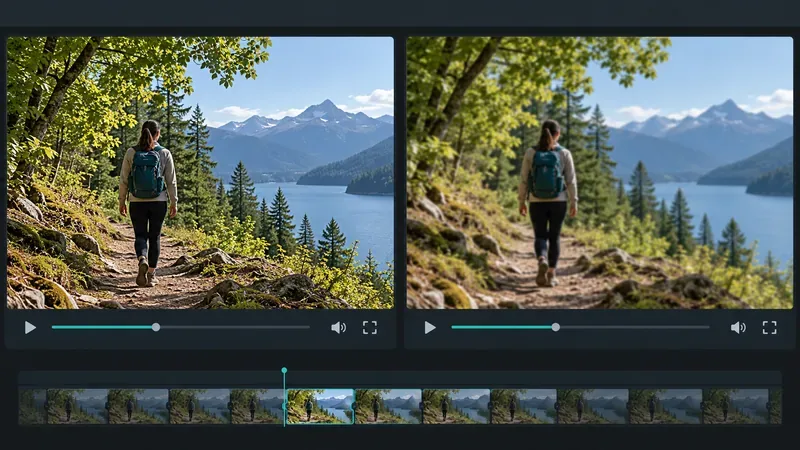
That does not automatically mean the upload failed or that your source file is damaged. First separate a temporary playback or processing issue from a lasting quality loss. The platform and its settings matter, so the exact controls and processing time differ by service.
Many video services transcode an uploaded file: they decode it and create new versions encoded with different resolutions, codecs, and data rates. A codec is the method used to compress and decompress video. Bitrate is the amount of data used each second; when fewer bits are available for a complicated frame, subtle detail may be simplified or blurred. These trade-offs help files stream across a range of screens and network conditions.
Vimeo explains that uploaded video is converted to other resolutions for device and network compatibility. YouTube likewise recommends uploading a high-quality source and notes that it re-encodes files as needed. This is why comparing the original on your computer with an online player is not a like-for-like comparison: the online copy may be a compressed rendition, and the player may be serving a smaller rendition still.
Yes, especially just after upload. YouTube says new videos are initially processed in low quality, while higher resolutions such as 1080p or 4K can take longer to appear. Its help page says processing depends on factors including format, length, frame rate, quality, and traffic; it gives an example of a 60-minute 4K, 30-frame-per-second video taking up to four hours for high-resolution processing. That example is not a universal time estimate for other videos or platforms.
On YouTube, open the watch page, choose the player’s Settings, and inspect Quality. If the expected resolution is missing, wait and check again after processing. On another service, look for its processing status or quality menu. Avoid repeatedly deleting and uploading the same file while a high-resolution version may still be generating.
Often, yes. Streaming quality can adjust to available bandwidth, the screen or player size, the device, and supported formats. YouTube documents that it changes stream quality based on viewing conditions and that some devices or browsers may not offer every high-quality format. A video set to “Auto” can therefore look soft during a weak connection even when a sharper stream exists.
For a fair check, use a stable connection, open the player’s quality menu, and select the highest available resolution. Compare the video at a similar display size to the original. A 1080p stream enlarged across a large monitor can look less crisp than the same stream in a smaller window. If the highest quality is still missing on one device, check the same link in an updated browser or another supported device before changing your export.
It may have. A common chain is camera file → editing export → messaging app or cloud copy → upload. If an earlier step reduced resolution or bitrate, the final service cannot restore the discarded detail. Re-exporting an already compressed file can add another generation of loss, even if the export menu says “4K.” Upscaling a 1080p source to 4K creates a larger frame, not the original missing detail.
For example, imagine a phone clip recorded at 4K that looks sharp in the camera roll but soft after it is sent through a chat app and uploaded. Compare the uploaded file with the camera original, not with the chat copy. If the chat copy is already smaller or softer, send the original file through a transfer method that preserves the file, then upload that copy. Keep an untouched original so you can retry without another export.
Start with the platform’s own encoding guidance because there is no single bitrate that guarantees the same result everywhere. YouTube recommends matching the uploaded frame rate to the recorded frame rate and provides reference bitrates; for SDR 1080p it lists 8 Mbps for standard frame rates and 12 Mbps for 48–60 fps. Vimeo publishes different ranges and recommends keeping the native frame rate with a constant frame rate. These are service-specific recommendations, not interchangeable rules.
Use a short, repeatable comparison instead of judging from memory. Pick a frame with fine texture and motion, such as moving tree branches or a person crossing a detailed background. Pause the source and the uploaded version at the same moment. Check the source locally, the platform’s highest-quality stream, and—if the platform allows it—the processed download. Look at the full frame first, then zoom in only to inspect artifacts.
Check processing first, then force the highest playback quality on a stable connection. If the issue remains, compare the file you uploaded with the original and inspect the export settings against the current official guidance for that service. Make one test upload of a short, representative clip before re-exporting a long project. Change one setting at a time so the comparison tells you something.
More bitrate or a larger file can help when the upload source is being compressed too aggressively, but it cannot recover detail already lost during recording or an earlier export. A platform also controls its own playback encodes, so a carefully prepared source can still look somewhat different online. The useful goal is not pixel-for-pixel identity in every player; it is a clean highest-quality stream without avoidable softness, blocking, or scaling.
Platform examples and guidance checked September 30, 2026. Other services may use different controls, processing steps, and recommendations.
Record smoother family videos without a gimbal using a steady grip, body bracing, stable surfaces, walking technique, and built-in phone stabilization.
Learn how deduplicating backups, snapshots, hashes, and restore tests can protect large videos while avoiding redundant copies.
Review faces, addresses, school clues, screens, audio, and location metadata before posting a family video. Compare blur, crop, mute, private sharing, and not posting.
Phone video brightness shifts usually come from auto-exposure, changing lenses, or flickering lights. Diagnose the cause and steady your next recording.
Learn how to reduce flicker and banding from household lights by matching frame rate and shutter speed, using camera controls, testing dimmers, and changing light sources.
Choose music for a home video by matching its license to your platforms, checking attribution and reuse terms, and saving proof before you post.
Find a practical camera height for craft demonstrations, compare overhead and angled views, and check framing, focus, and lighting so viewers can follow each step.
Learn why uploaded videos can look softer, how transcoding and playback quality affect detail, and what to check in processing, export settings, and your source file.
Capture more understandable speech when children move with closer microphone placement, a quieter setup, simple monitoring, and a clear playback check.
Learn how to film short recipe videos with hands-only framing, a clean background, careful audio, and a final privacy check before posting.