How to Record Steady Family Videos Without Buying a Gimbal
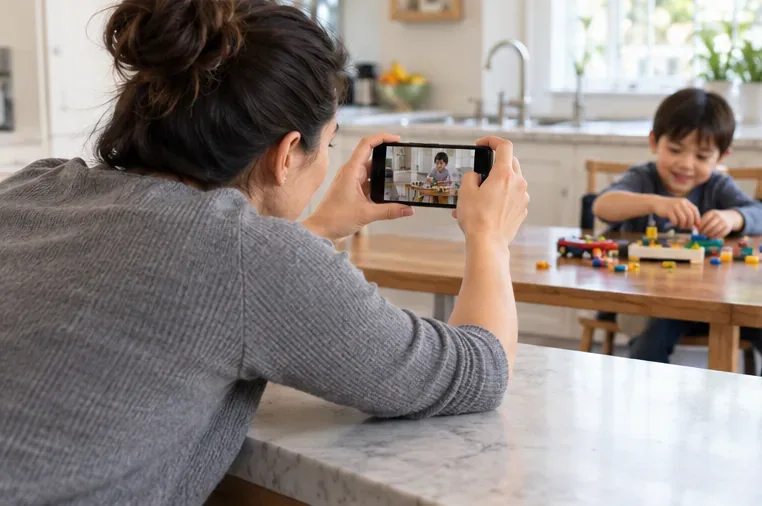
Record smoother family videos without a gimbal using a steady grip, body bracing, stable surfaces, walking technique, and built-in phone stabilization.
If someone watches your video on mute, readable captions should let them follow the words and the important audio information without pausing to decode each screen. The result is not simply text that appears on time: viewers need accurate wording, enough time to read, a clear visual style, and placement that leaves the action visible.
A useful test is straightforward: play the finished video without sound on a phone at normal speed. A viewer should be able to understand the spoken message, distinguish speakers when necessary, and notice meaningful sounds without captions crowding the picture or controls. The steps below help you reach that result and identify what to fix when the test fails.
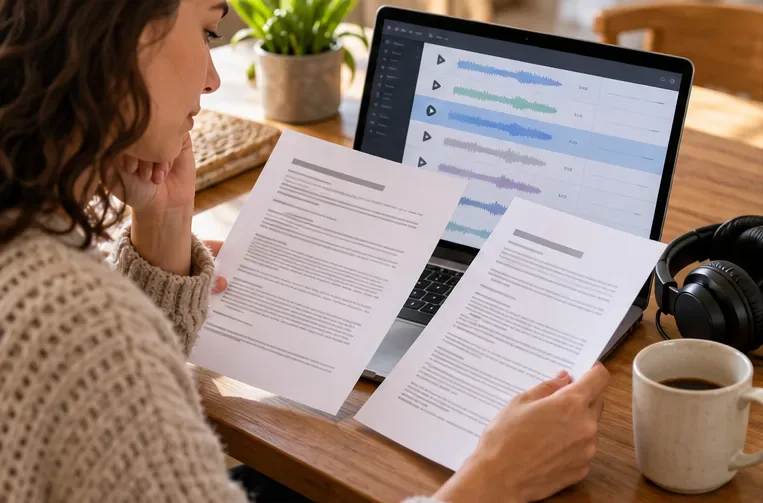
Use an automatic transcript as a first draft if it saves time, or type the dialogue yourself. Do not publish the draft without checking it. Speech recognition can miss names, technical terms, accents, dialects, quiet speech, overlapping voices, and words under music or noise. Replay the video while following every caption. Correct the wording, punctuation, speaker changes, and timing against what is actually audible.
Check more than the dialogue. Captions should carry audio information a viewer needs to understand the video: identify a speaker when it is not obvious, and describe meaningful non-speech sounds such as a warning alarm, a door slam that changes the scene, or music that sets a significant mood. A short label such as [Timer beeps] or [Soft music begins] may be enough. Avoid labeling every incidental rustle or adding a sound cue that does not help explain what is happening.
This is the distinction between a transcript that only records dialogue and captions that represent the relevant audio track. The W3C’s explanation of WCAG 2.2 Success Criterion 1.2.2 describes captions as including dialogue, speaker identification, and meaningful non-speech sounds. That criterion applies to prerecorded synchronized media within its scope; it does not prescribe one universal caption font, line length, or editor.
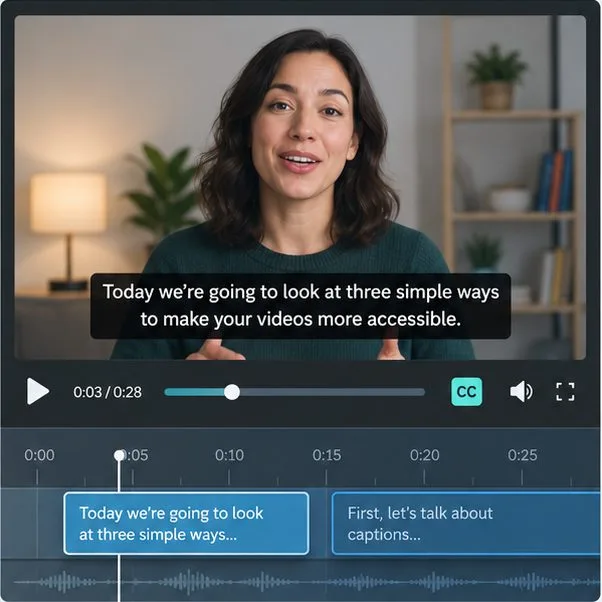
Keep each caption short enough to take in at a glance, while preserving the speaker’s meaning and important vocabulary. A long sentence does not become readable just because it is accurate. Divide it at a natural pause or clause, and avoid splitting a phrase that belongs together. For example, keep “into bite-sized pieces” together rather than leaving “into” at the end of one line and the rest on the next.
One or two lines are a useful starting point, not a rule that overrides the video. Prefer mixed-case text, a clear sans-serif typeface, and a size that remains legible on the smallest screen you expect. Leave comfortable margins so letters are not clipped. Use a solid or translucent background, outline, or shadow where needed to separate the words from a changing picture. The DCMP Captioning Key gives practical advice on mixed case, line division, placement, and contrast; its guidance can inform a general workflow, though specific conventions may vary by content type and delivery platform.
Do not shorten captions by deleting a fact the viewer needs. If the text still arrives too quickly, first look for a natural pause where you can hold or split the caption, then check whether nonessential repetition can be removed without changing the point. For a speaker’s exact quotation, lyric, or wording where precision matters, preserve the words and adjust the edit or timing around them. Reading-rate numbers are not a universal target: DCMP discusses rates for particular educational levels and audiences, and its presentation-rate guidance emphasizes preserving meaning when editing.
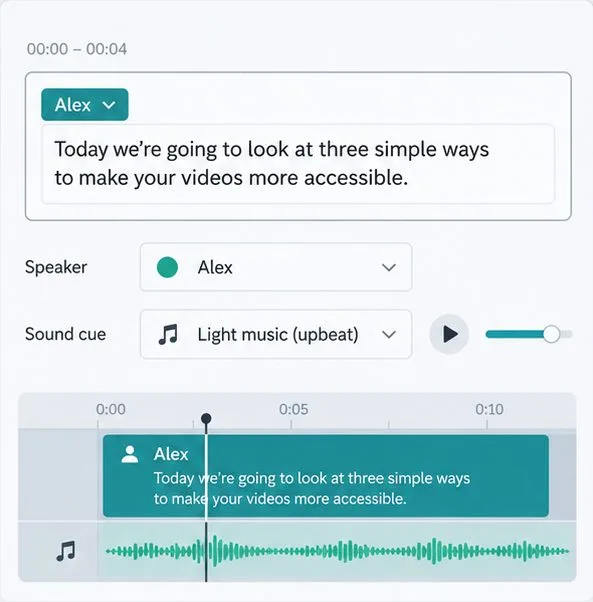
Set each caption to appear with the words or sound it represents and disappear when that information has ended. Captions that trail the speaker, flash too briefly, or linger into the next thought can be hard to follow. Read along at ordinary playback speed: if you have to pause or rewind to finish a line, increase its display time, split it, or trim only material that is genuinely nonessential.
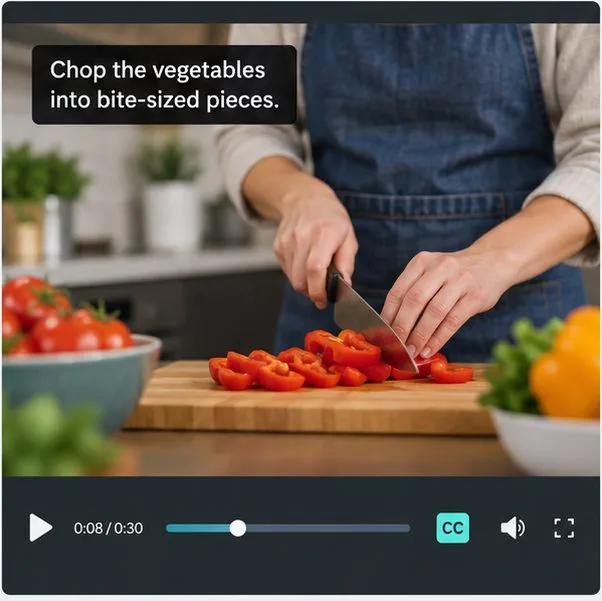
Place captions where they do not cover a face, a speaker’s mouth, a diagram label, an on-screen instruction, or the action the viewer needs to see. Bottom-center is common, but it is not always the best position. If the platform lets you reposition captions, move them when they collide with important visuals. If placement is fixed, revise the video framing or the timing of the overlapping graphic where possible. Keep speaker labels consistent; add a label when a voice is off screen or the identity is otherwise unclear, rather than naming a speaker based on a guess.
For example, on a hypothetical cooking clip, the caption “Chop the vegetables into bite-sized pieces” should not hide the hands or knife work. A concise instruction placed in open space can preserve both the words and the visual demonstration. The mockup below illustrates that placement choice; it is an example frame, not a report of a tested product.
Turn the sound off and watch from beginning to end without stopping. Check that the captions carry the same essential message as the audio, that the wording matches, and that useful speaker and sound information is present. Then watch with sound once more to catch timing drift. Check the beginning and end of each caption, quick edits, overlapping dialogue, and any moment where a graphic or face appears behind the text.
Repeat the check on a phone-sized preview. Verify that captions remain inside the visible frame, are large enough to read, and do not collide with playback controls or platform overlays. A desktop preview can make text look spacious and easy to read even when a phone view compresses it. If captions are cut off, increase the safe margin or change the text placement or video crop. If the letters blend into the footage, strengthen the background or edge contrast rather than relying on color alone.
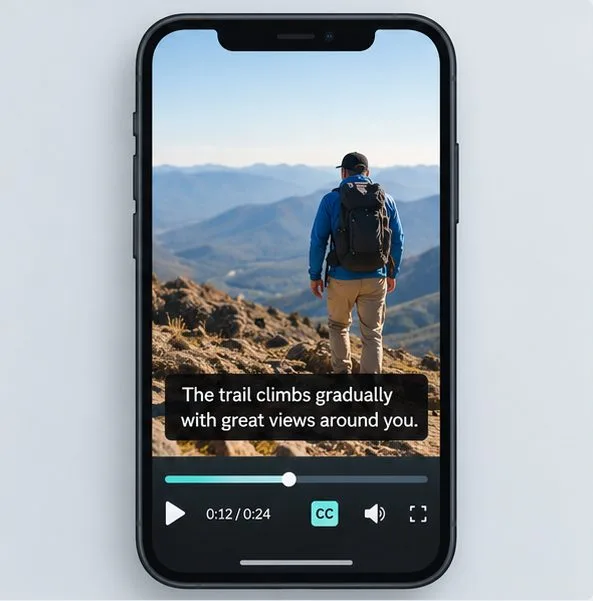
A timed caption track can be turned on or off and may give viewers access to language or display options, depending on the player. Burned-in, or open, captions are part of the picture and remain visible in every player, which can suit short clips on platforms where viewers often scroll with audio muted. They cannot be turned off or styled by the viewer and may overlap a player’s own captions. When a platform supports caption tracks, adding a reviewed track is often the more flexible accessibility option; for social clips, you may choose both an embedded version and a separate track if the platform and workflow support them.
On YouTube, the current creator workflow is to open YouTube Studio, choose Subtitles, select a video, choose a language, and add a caption track. You can type captions or upload a timed file. YouTube lists SubRip (.srt) as a basic supported format and explains that caption files carry text and time codes. Menu labels and available features can change, so follow the platform’s live Help instructions if your screen differs. See YouTube’s steps for adding subtitles and captions and its supported caption-file formats.
Automatic captions are a starting point, not a quality check. YouTube notes that errors can result from mispronunciation, accents, dialects, background noise, poor audio, overlapping speakers, and multiple languages. Review and correct them before relying on them. If automatic recognition repeatedly fails on the audio, try a human-edited transcript, manually timed captions, or a professional captioning service. For live video, plan for real-time captioning and its possible delay; a post-production caption pass cannot make a live moment accessible as it happens.
If one of these checks fails, change the part causing the problem: correct the transcript for accuracy, adjust breaks or duration for pacing, increase contrast for visibility, or move the text and reframe the video when it obscures content. Then repeat the muted preview. This check can reveal practical problems, but it cannot prove that every viewer will find the captions equally comfortable or that a video meets every accessibility requirement. For a high-stakes, complex, or widely distributed video, ask people who use captions to review it and follow the applicable accessibility standard and platform requirements.
Platform workflow checked September 30, 2026. Caption style references: W3C WCAG 2.2 Understanding, and DCMP Captioning Key.
Record smoother family videos without a gimbal using a steady grip, body bracing, stable surfaces, walking technique, and built-in phone stabilization.
Learn how deduplicating backups, snapshots, hashes, and restore tests can protect large videos while avoiding redundant copies.
Review faces, addresses, school clues, screens, audio, and location metadata before posting a family video. Compare blur, crop, mute, private sharing, and not posting.
Phone video brightness shifts usually come from auto-exposure, changing lenses, or flickering lights. Diagnose the cause and steady your next recording.
Learn how to reduce flicker and banding from household lights by matching frame rate and shutter speed, using camera controls, testing dimmers, and changing light sources.
Choose music for a home video by matching its license to your platforms, checking attribution and reuse terms, and saving proof before you post.
Find a practical camera height for craft demonstrations, compare overhead and angled views, and check framing, focus, and lighting so viewers can follow each step.
Learn why uploaded videos can look softer, how transcoding and playback quality affect detail, and what to check in processing, export settings, and your source file.
Capture more understandable speech when children move with closer microphone placement, a quieter setup, simple monitoring, and a clear playback check.
Learn how to film short recipe videos with hands-only framing, a clean background, careful audio, and a final privacy check before posting.